

Finding games…



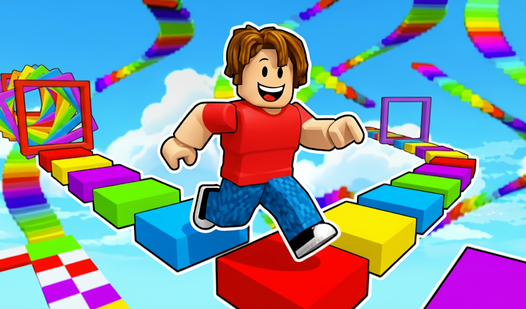

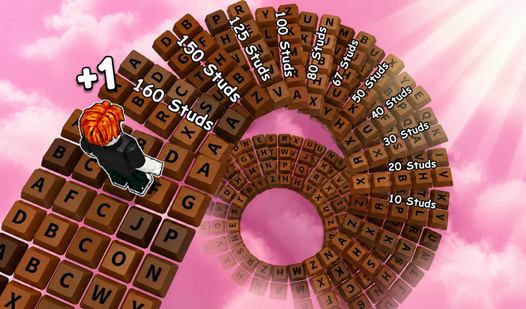

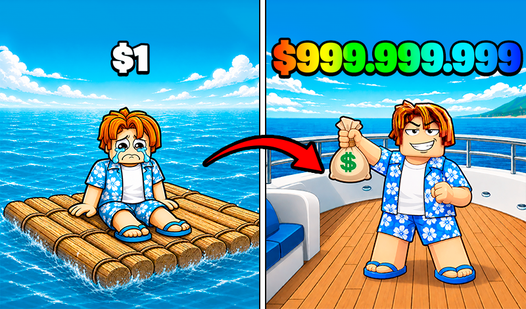



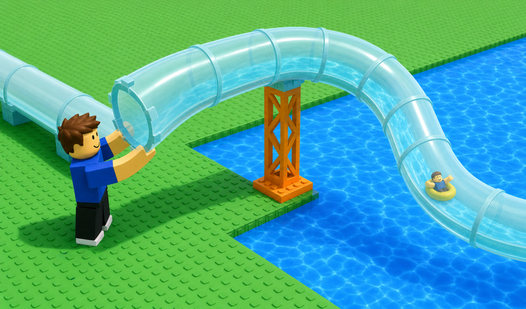




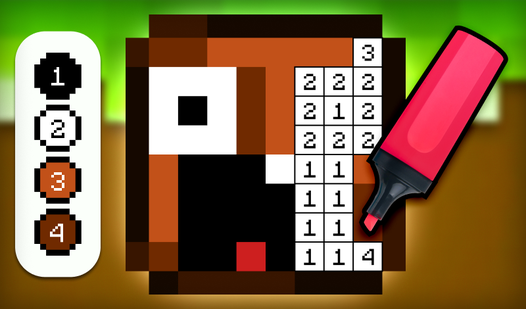
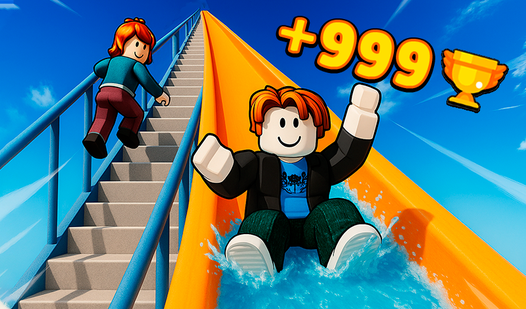
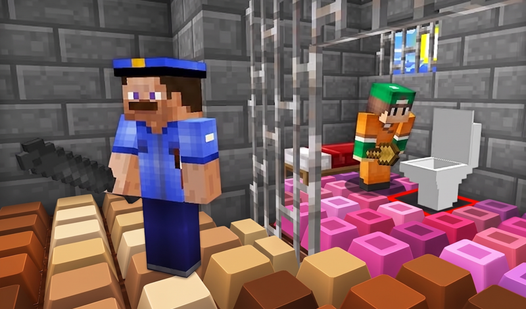
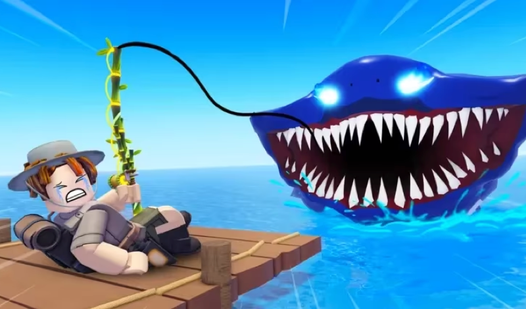
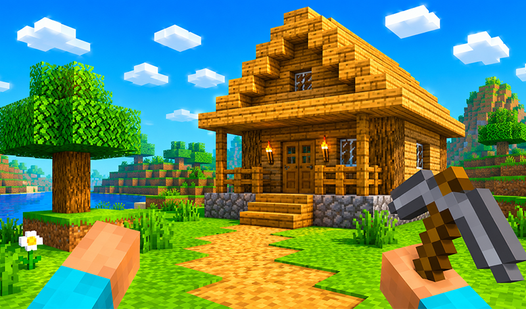
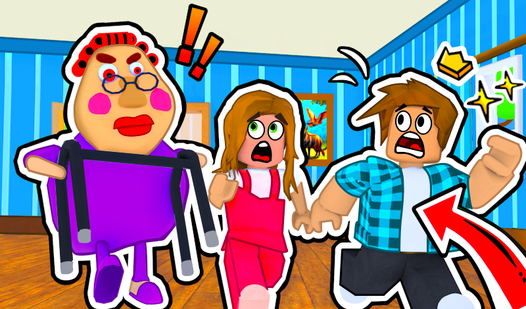
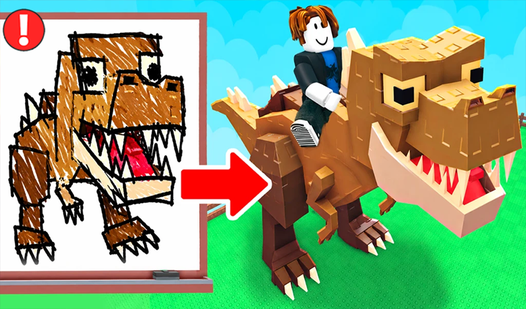
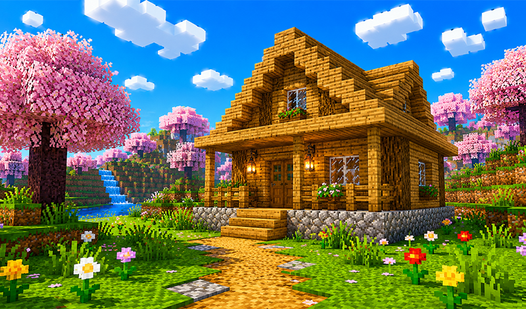
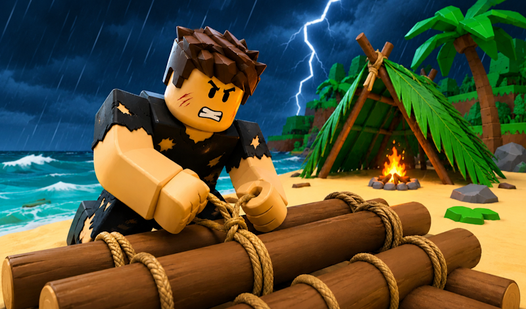
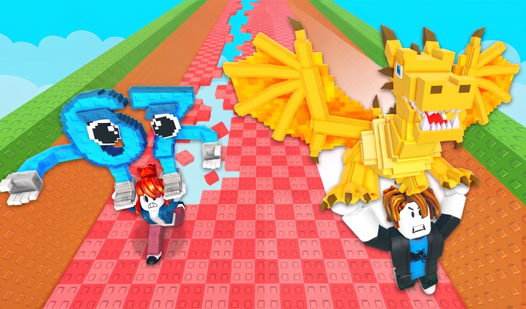
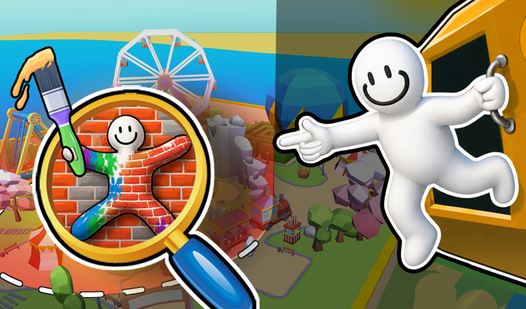
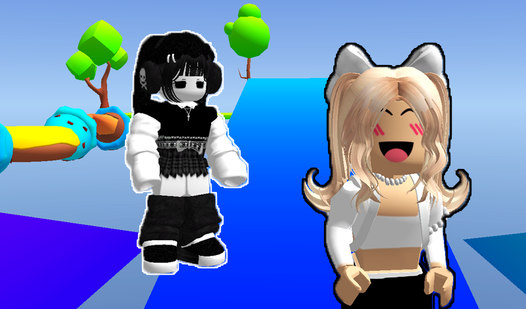
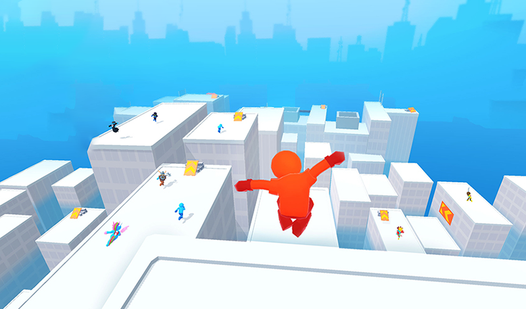
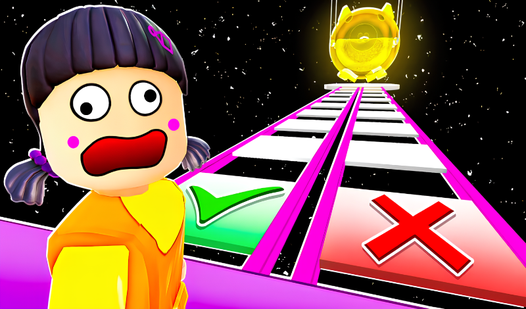
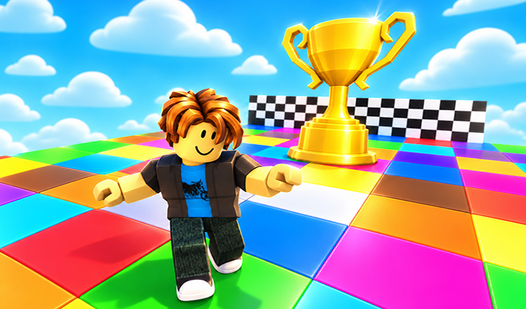
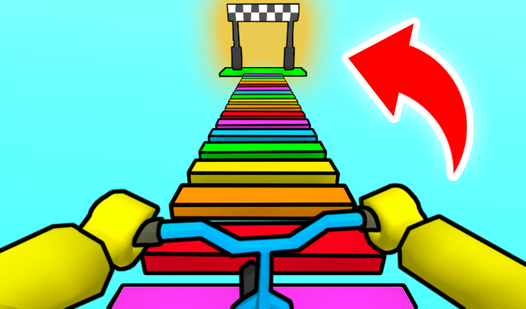
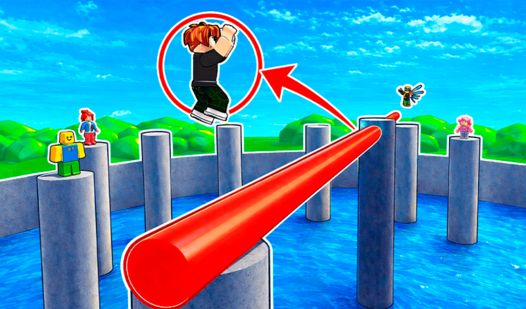
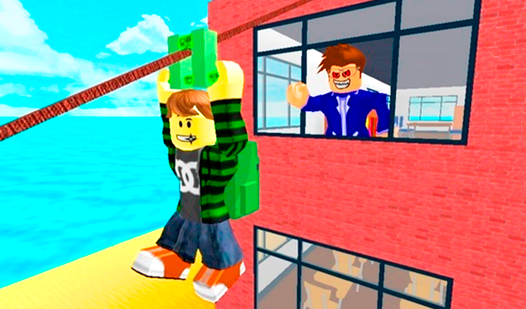
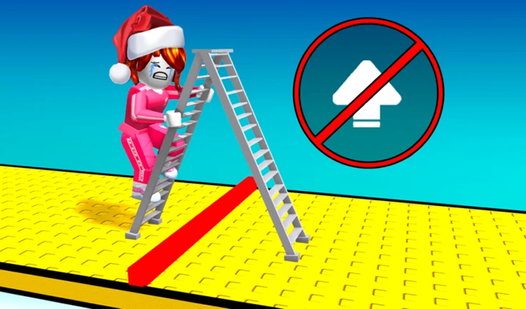
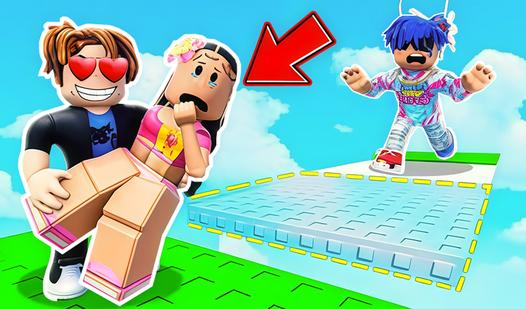
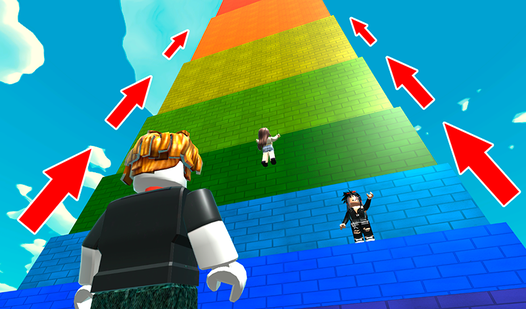
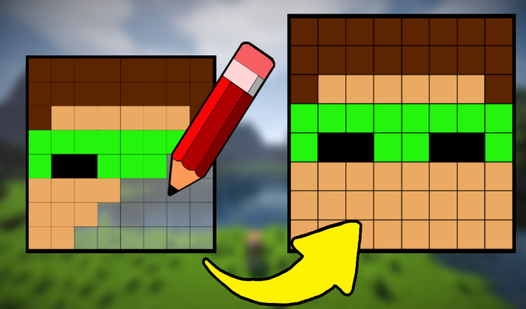
This hub brings together browser games for children across different genres. Start with the age label, then choose a theme and control scheme that suit the child.
Read the game description for its objectives and content. Before a child starts, try the opening section and look at settings for sound, communication and purchases. This helps you decide whether the game fits the time and situation you have in mind.
The selection spans obby platformers, physics puzzles, match-3 boards, racing, pet care, dress-up and educational games. Choose a format the child enjoys, then check its controls and device requirements.
What's in the mix:
- Obby and platformers - jumping and obstacle courses; Obby Games for Kids focuses on this format - Match-3 and pattern puzzles - matching pieces and recognizing combinations - Coloring, dress-up and pet care - choosing colors, outfits and care actions - Educational games - tasks involving numbers, words or logic - Simple arcade - movement, timing and short attempts
For another selection, see Games for School Chromebooks. Access on a school-managed device depends on its rules, network and the individual game. Top 15 Games for Kids — Safe & Free Online offers a parent-oriented introduction to choosing browser games.
For an introduction to the Skibidi Toilet theme, see Skibidi Toilet Games — Why Kids Love Them. Check each game separately rather than assigning an age rating from its series or visual style.
Start with the age label, description and control instructions. Try the opening section to see the actual content and pace. Check communication and purchase options before handing over the device.
Use the age label as a starting point and read the publisher’s content guidance where available. A child’s interests and comfort with the theme also matter, so review the selected game rather than choosing by the number alone.
Check the school rules and the individual game’s requirements. On a managed Chromebook, access depends on the device and network settings. You can also explore Games for School Chromebooks when choosing a game allowed for the activity.
Ads can appear on game pages and inside games. Review the selected game and its settings before a child plays, and explain which buttons belong to the game and which open an advertisement.
Agree on a stopping point before starting, such as the end of a round or level, and choose a game that fits the time available. Check whether progress can be saved before closing it. A browser tab alone does not set a suitable play duration for a child.